 Nguồn cấp tin tức
  Blog
Blog  Khám phá
  Sự kiện
  Diễn đàn
  Việc làm
  Network

Microsoft recently announced that the Power BI integration within SharePoint lists and libraries will be retired. This change directly affects anyone using the ‘Visualize the List’ or ‘Visualize the Library’ feature to quickly build and access reports from within SharePoint.
Microsoft’s announcement includes a few suggested migration alternatives. These options work well for simple reports that haven’t been heavily customized, and they can often be rebuilt in Power BI within minutes. You can read the full announcement and important dates here.
The real challenge, however, is identifying how many of these reports and workspaces exist and linking them back to their original SharePoint lists or libraries.
Takeaways
By the end of this article, you’ll know how to:
- Identify Power BI workspaces created through SharePoint list or library integration.
- Link those workspaces back to their original SharePoint sites.
- Analyze metadata to assess which reports and models need migration.
- Distinguish between personal and team sites to assign ownership.
- Estimate effort and clean up unused or outdated reports.
Key Considerations Before You Start
1. Clean up unused reports
This retirement is an excellent opportunity to declutter. Many of these reports exist simply because the option to “Visualize” was available and someone clicked around out of curiosity. Before migrating, it’s worth reviewing whether a report is truly needed.
2. Clarify ownership
- Personal SharePoint lists — Reports from these should be handled by the individual users who created them. It’s essential to reach out and ask whether they want to keep and rebuild those reports in Power BI.
- Team or department lists — Ownership is less clear here and requires coordination to decide who will rebuild or maintain them.
3. Check licensing requirements
Users without a Power BI Pro license can’t publish to shared workspaces, but they can rebuild reports in My workspace. While publishing to users’ “My workspace” will work for reports built on personal SharePoint lists, it’s not fit for reports used by more than one user. In such cases, at least one user must have a Power BI Pro license, as well as the appropriate workspace and user licenses for other users.
If you’re already extracting tenant metadata, you’re off to a great start. The following information will help you handle the migration or cleanup efficiently:
- Workspaces: Name, Description, and ID
- Semantic Models: Name, ID, Workspace ID, and data source details
- Reports: Name, ID, Workspace ID, and Semantic Model ID
- Activity Logs: To understand usage and relevance
You don’t need to follow these steps exactly, but use them as a guide to analyze your existing tenant metadata in a similar manner. The goal is to identify the relevant workspaces, determine the number of reports and semantic models they contain, link them back to their source SharePoint sites, and identify the users associated with them.
Step 1: Find SharePoint integration dependent Power BI workspaces
There are a few ways to locate workspaces created by the SharePoint integration. You’ll need tenant admin rights to do this.
Option 1: Use the Fabric Admin Portal
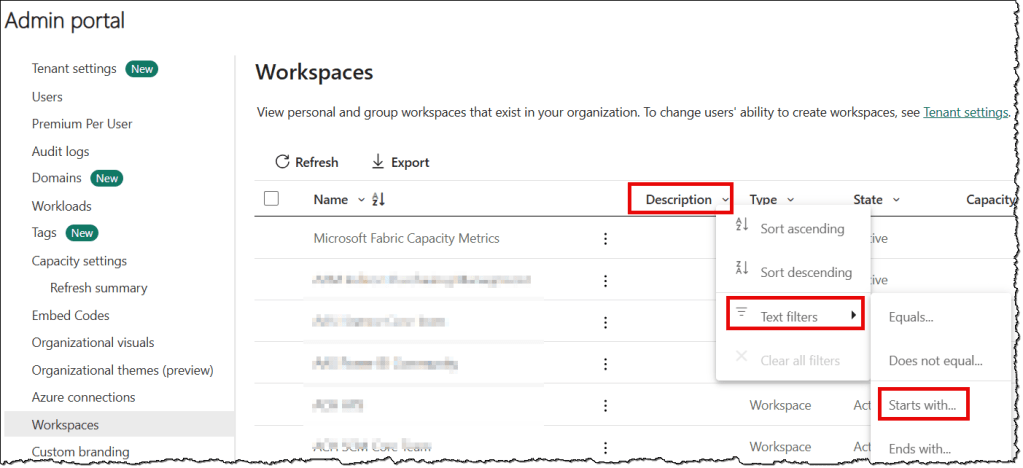
- Go to Fabric Admin Portal > Workspaces, or use this direct link
- In the Description column, choose Text filters > Starts with
- On the Filters pane, enter “Sharepoint”, and click OK.
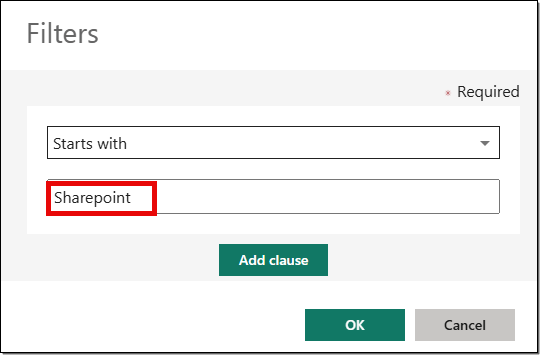
- You’ll now see all Power BI workspaces created through the SharePoint integration (plus any others whose description starts with “Sharepoint”).
Notes:
- Filtering by Personal Group won’t help, since all users’ “My workspace” instances also fall under that type.
- If you export the list, it includes all workspaces. You’ll need to reapply your filters in Excel or Power BI. If you’ve thousands of workspaces, then it can take hours to export them.
Option 2: Use the Power BI REST API
A faster way is to call the Admin – Groups GetGroupsAsAdmin API. You can run this API with any tool (e.g., Fabric Notebook, Postman, PowerShell, Python) or directly from the Microsoft Docs Try It feature using a tenant admin account.
Query parameter to use:
Use the following query parameters in your API call:
$top=5000$filter=startswith(description,'Sharepoint')Mind the letter case. startswith() is case-sensitive, and your input text must match the “Sharepoint” exactly. Upper case “S” but lower case “p”.
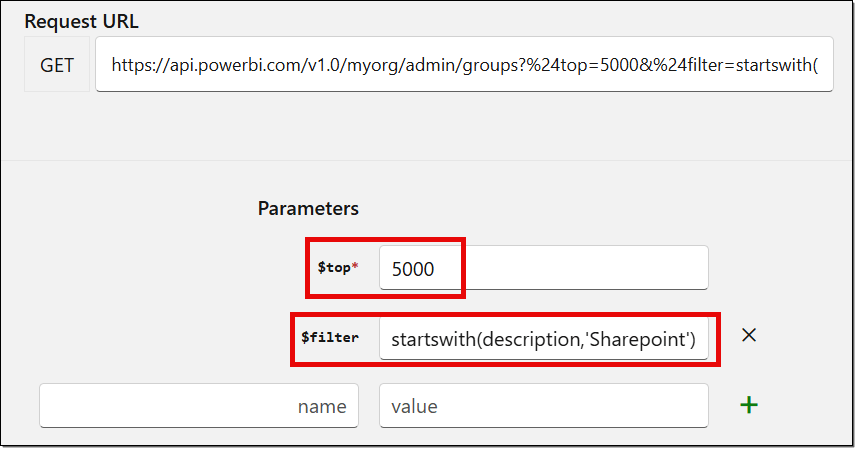
This API call returns the same results as the manual method. Use $top and $skip parameters to page through all workspaces if you’ve more than 5,000 such workspaces. Once you have the results, save the JSON and extract the workspace IDs (Power BI is perfect for parsing this).
Notes:
- Exclude any workspaces whose descriptions start with “SharePoint” but aren’t actually dependent on the SharePoint integration feature. These will typically have descriptions that differ from the standard format used for SharePoint-dependent workspaces.
- Workspaces created using the Visualize the List feature have a workspace description of “SharePointList Folder”. It might be different for workspaces created using the Visualize the Library feature.
Step 3: Link workspaces to their source SharePoint sites
Next, use the Scanner APIs to retrieve detailed information about reports and semantic models in each workspace.
Workflow:
- Batch your workspace IDs (100 per batch).
- Trigger a scan using Admin – WorkspaceInfo PostWorkspaceInfo. In the request body, include the workspace batch formatted as shown in the sample below, and set both
datasourceDetailsandlineagetotrue.

- Get the scan ID from the response.
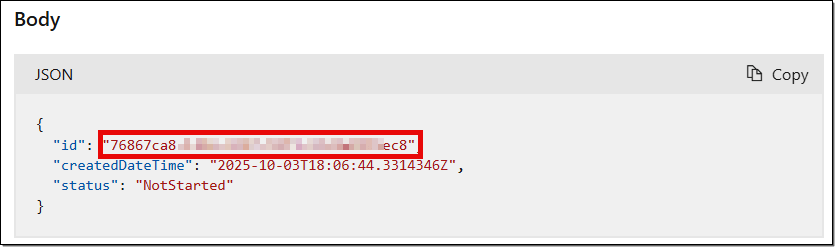
- Check scan status using Admin – WorkspaceInfo GetScanStatus.
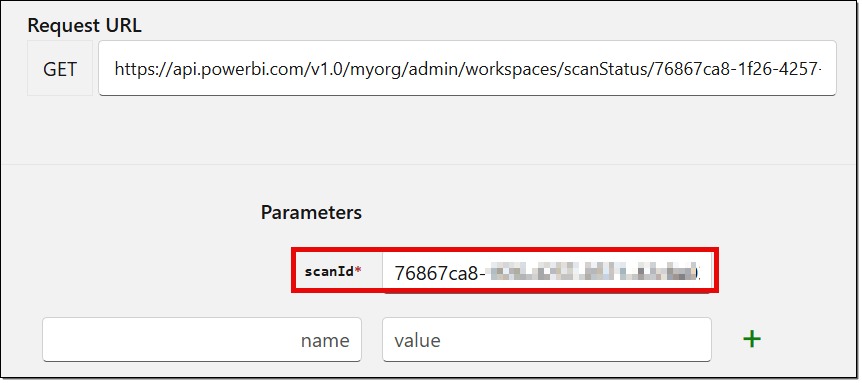
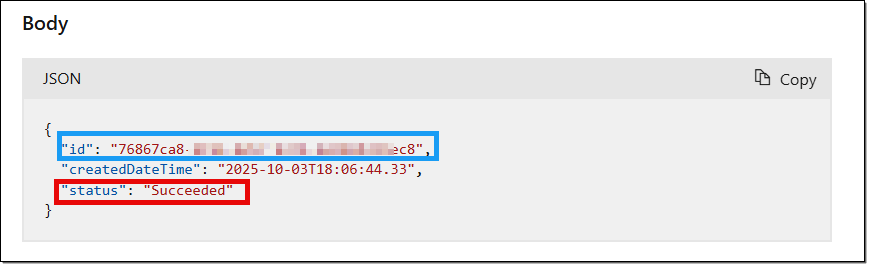
- Retrieve results with Admin – WorkspaceInfo GetScanResult once the scan status is Succeeded.
Copy and save the JSON results, then repeat these steps for all workspace batches until your complete workspace list is processed.
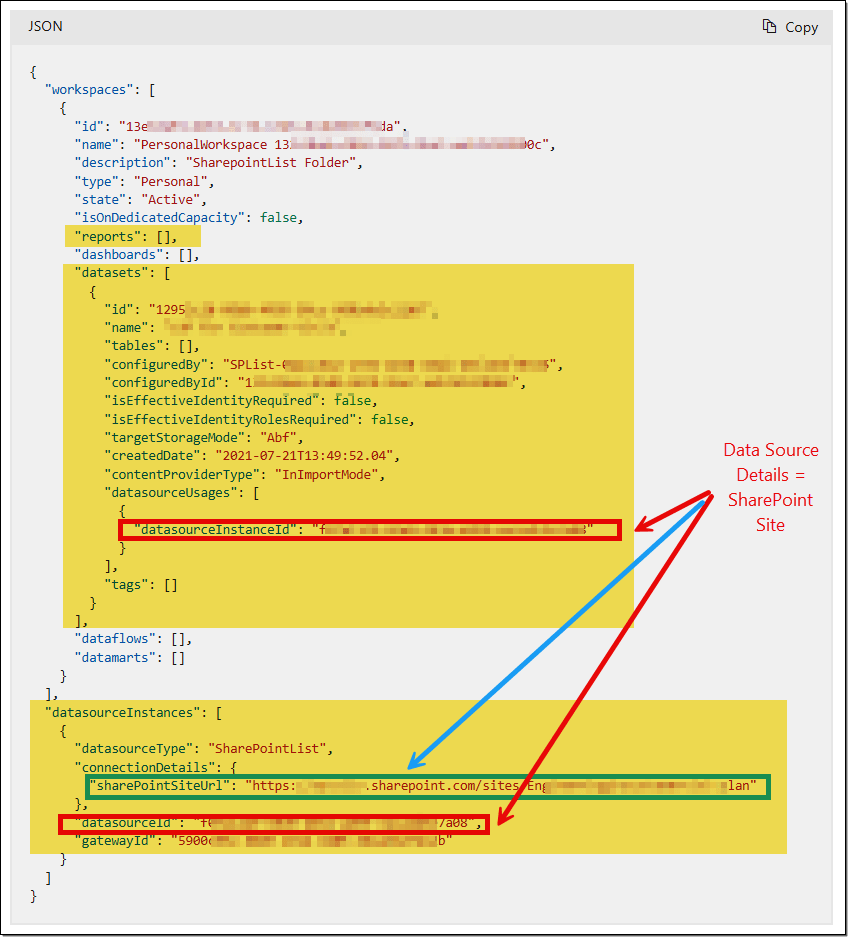
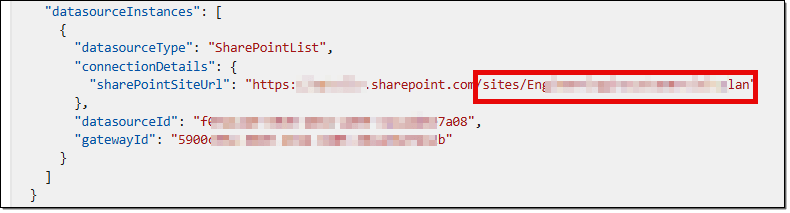
In the JSON output, you’ll find — at the workspace level — details about reports, semantic models, and the data sources used in each model. These include the data source type, connection details, and the associated SharePoint site URL. Naturally, you can use Power BI itself to process and analyze this JSON data.
It’s common to see variations in the structure: some workspaces may have semantic models without reports, while others might contain multiple models and reports. However, each semantic model connects to only one SharePoint site. In contrast, a single SharePoint site may be used in multiple models — in which case, those models should all reside within the same workspace.
One key insight from this JSON is the number of reports and semantic models within your SharePoint-dependent workspaces. The numbers help estimate the overall effort needed for migration or cleanup. The most critical piece of data is the source SharePoint site URL, which links each workspace to its origin SharePoint site.
Step 4: Identify the users of these reports
To simplify ownership and communication, categorize these SharePoint sites into two types: Personal and Team.
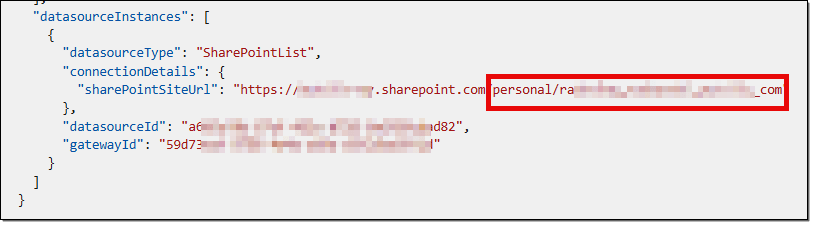
- Personal Sites belong to individual users. These users should take responsibility for migrating or deleting their own reports. You can easily identify such sites by the word “personal” in the URL, which also includes the username. The user details make it straightforward to contact the relevant users.
- Team Sites, on the other hand, are shared spaces and require a different approach. Finding active users of team-site-based reports can be challenging unless you’ve been regularly exporting tenant activity logs.
Here’s a Fabric Notebook that brings together the REST API calls and steps described above, allowing you to complete the process with just a few clicks.
If you already have historical logs, you can easily identify report usage and active users over the past months or years. In our organization, we have chosen to delete reports that have not been accessed within 18 months or have no active users.
You can use the Admin – Get Activity Events API to check usage, but note:
- The API doesn’t allow filtering by workspace ID; you’ll need to export logs for all workspaces and filter them later.
- You can only request logs for one day per API call.
To gain a more comprehensive understanding of report usage, consider exporting logs for a more extended period (e.g., 6–12 months) and automating the process to eliminate manual effort. We won’t go into those automation details here.
Alternatively, you can contact your SharePoint administration team (or equivalent) to get a list of users who have access to these team sites. From there, you can reach out to those users to discuss migration plans and ownership responsibilities.
Final Thoughts
While the retirement of Power BI integration in SharePoint may feel inconvenient, it’s also a great opportunity to:
- Clean up unused or obsolete reports.
- Establish clearer ownership.
- Move towards a more sustainable Power BI governance model.
By proactively identifying and analyzing SharePoint integration dependent workspaces now, you’ll ensure a smooth transition before the feature is retired.